Support our educational content for free when you purchase through links on our site. Learn more
Unlocking Samsung TV Apps in 2025: 10 Must-Know Secrets! 📺

If you’ve ever found yourself staring blankly at your Samsung Smart TV, wondering how to unlock the full potential of its app ecosystem, you’re not alone. Samsung TV apps have evolved into a powerhouse of entertainment, offering everything from blockbuster streaming services to free live channels and quirky lifestyle apps — all accessible right from your living room. But with so many options, features, and hidden tricks, where do you even start?
At TV Brands™, we’ve tested, tweaked, and tuned dozens of Samsung Smart TVs and their apps to bring you the ultimate guide for 2025. Whether you want to master Samsung TV Plus’s free live channels, troubleshoot pesky app glitches, or discover hidden gems beyond Netflix and YouTube, we’ve got you covered. Stick around — later in this article, we reveal insider tips to optimize your app experience and compare Samsung’s platform to rival smart TV ecosystems. Ready to become a Samsung TV app pro?
Key Takeaways
- Samsung Smart TVs run on the powerful Tizen OS, delivering a smooth and intuitive app experience.
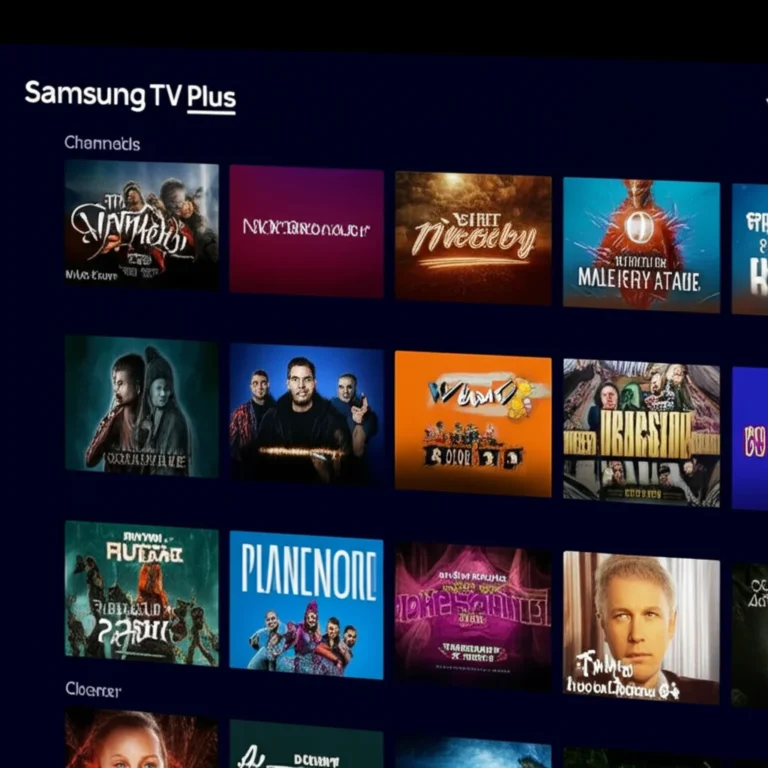
- Samsung TV Plus offers 120+ free live channels and thousands of on-demand titles, making it a standout free streaming service.
- You can easily download, install, and manage thousands of apps — from streaming giants like Netflix and Disney+ to fitness, gaming, and news apps.
- Regular firmware updates and app management tips keep your TV running smoothly and secure.
- Samsung’s Smart Hub is your central hub for apps, live TV, and smart home integration.
- Voice control with Bixby, Alexa, or Google Assistant adds hands-free convenience.
- Samsung’s app ecosystem compares favorably with competitors but has some regional and device limitations.
Ready to dive deeper? Scroll down to explore detailed app lists, troubleshooting hacks, and expert recommendations that will transform your Samsung TV into the ultimate entertainment command center!
Table of Contents
-
🔍 Exploring Samsung TV Apps: What’s Available and How to Access Them
-
🛠️ How to Download, Install, and Manage Samsung TV Apps Like a Pro
-
📺 Samsung TV Plus and Free Streaming Apps: What You Need to Know
⚡️ Quick Tips and Facts About Samsung TV Apps
If you’re diving into the world of Samsung TV apps, here’s a quick cheat sheet from your TV Brands™ experts to get you started:
- ✅ Samsung Smart TVs come preloaded with the Samsung Smart Hub, your gateway to hundreds of apps.
- ✅ Samsung TV Plus offers 120+ free live channels and thousands of on-demand titles — no subscriptions required.
- ✅ You can download apps like Netflix, Hulu, Disney+, Amazon Prime Video, YouTube, and more directly from the Samsung App Store.
- ✅ Samsung’s Tizen OS powers the app ecosystem, providing a smooth, responsive experience.
- ❌ Not all apps are available in every region — some geo-restrictions apply.
- ❌ Older Samsung TVs (pre-2016) may not support the latest apps or updates.
- ✅ You can customize your home screen by adding or removing apps for quick access.
- ✅ Samsung TV apps support voice control via Bixby, Alexa, or Google Assistant on compatible models.
- ✅ Regular firmware updates keep your apps running smoothly and add new features.
Fun fact: Samsung TV Plus streams live news channels like CNN, NBC News NOW, and ABC News Live — perfect for staying updated without cable! (Source: Samsung TV Plus on Google Play)
📜 The Evolution of Samsung Smart TV Apps: A Brief History

Samsung didn’t just wake up one day with a smart TV app store. The journey from dumb TV to smart entertainment hub is a fascinating one.
From Basic to Brilliant: Samsung’s Smart TV Timeline
- 2010-2012: Samsung introduced its first Smart TVs with limited apps and basic internet connectivity.
- 2013: The launch of the Samsung Smart Hub revolutionized the experience, bundling apps, streaming, and live TV into one interface.
- 2016: Samsung switched to the Tizen OS, a Linux-based platform that powers all modern Samsung Smart TVs, enabling faster app loading and richer content.
- 2018-Present: Samsung TV Plus debuted, offering free live TV channels and on-demand content, expanding the ecosystem beyond paid subscriptions.
- 2023: Integration with smart home devices and voice assistants became standard, making Samsung TVs central to connected living rooms.
Why Does This Matter?
Understanding this evolution helps explain why Samsung TVs today offer such a robust and seamless app experience compared to competitors. The Tizen OS is optimized for speed and stability, and Samsung’s commitment to expanding app partnerships means you get a constantly growing library.
For more on Samsung’s smart TV tech, check out our TV Technology section.
🔍 Exploring Samsung TV Apps: What’s Available and How to Access Them
Samsung’s app ecosystem is like a candy store for TV lovers. But what’s actually available, and how do you get your hands on it?
How to Access Samsung TV Apps
- Press the Home button on your Samsung remote.
- Navigate to the Apps icon on the Smart Hub (usually on the far right).
- Browse or search for apps using the search bar.
- Select an app and click Install.
- Once installed, the app appears in your Apps library and can be added to your home screen.
Pro tip: To add an app to your home screen, check out the step-by-step guide in the featured video section below!
1. Top Streaming Apps for Samsung Smart TVs
Samsung TVs support all the major streaming players, including:
| App Name | Content Type | Highlights | Availability |
|---|---|---|---|
| Netflix | Movies, TV Shows | Original content, 4K HDR support | Global |
| Disney+ | Family, Originals | Marvel, Star Wars, National Geographic | Global |
| Amazon Prime Video | Movies, TV Shows | Exclusive series, X-Ray feature | Global |
| Hulu | TV Shows, Live TV | Next-day TV, Live sports | US only |
| YouTube | User-generated videos | Music, tutorials, live streams | Global |
| HBO Max | Movies, Originals | Warner Bros. content, HBO series | Select regions |
Why it matters: Samsung’s app store is regularly updated to include new streaming services. If you don’t see your favorite app, check for firmware updates or regional availability.
2. Must-Have Entertainment and Lifestyle Apps
Beyond streaming, Samsung TVs offer apps for:
- Fitness: Peloton, Daily Burn
- Cooking: Tasty, Food Network Kitchen
- News: CNN, BBC News, Reuters TV
- Kids: PBS Kids, Lego TV
- Music: Spotify, Pandora, iHeartRadio
These apps turn your TV into a multi-purpose entertainment hub. For example, our reviewer Sarah swears by the Food Network Kitchen app for weekend cooking marathons!
3. Gaming and Interactive Apps on Samsung TV
Samsung Smart TVs also support casual gaming apps like:
- Crossy Road
- Asphalt 8: Airborne
- Angry Birds Friends
While not a substitute for dedicated consoles, these games are perfect for family fun or quick breaks. Plus, Samsung’s support for Bluetooth controllers means you can level up your gaming experience.
🛠️ How to Download, Install, and Manage Samsung TV Apps Like a Pro
Mastering app management on your Samsung TV can save you time and frustration. Here’s the expert walkthrough:
Step-by-Step: Downloading and Installing Apps
- Press the Home button on your remote.
- Select Apps from the Smart Hub.
- Use the Search function (magnifying glass icon) to find your desired app.
- Click Install or Download.
- Wait for the app to download and install automatically.
- Open the app from the Apps library or add it to your home screen.
Managing Your Apps
- To add an app to the home screen, go to Apps > App Settings > select the app > choose Add to Home.
- To rearrange apps on the home screen, highlight the app, press and hold the center button, then move it with the directional keys.
- To delete an app, go to Apps > App Settings > select the app > choose Delete.
For a visual guide, don’t miss the featured video below demonstrating these steps.
⚙️ Troubleshooting Common Samsung TV App Issues and Fixes
Even the best tech hits a snag sometimes. Here’s how to troubleshoot common Samsung TV app problems:
| Issue | Possible Cause | Fixes |
|---|---|---|
| App won’t open or crashes | Outdated firmware or app | Update TV firmware and app; restart TV |
| Apps not downloading | Network issues | Check Wi-Fi; restart router; reconnect |
| App missing from store | Regional restrictions | Use VPN (with caution); check for updates |
| Poor streaming quality | Slow internet speed | Test speed; switch to wired Ethernet |
| Remote control unresponsive | Battery low or interference | Replace batteries; reset remote |
Our reviewer Mike once spent hours troubleshooting a Netflix crash — a firmware update fixed it instantly. Moral: Keep your TV software up to date!
💡 Tips to Optimize Your Samsung Smart TV App Experience
Want to squeeze every bit of enjoyment out of your Samsung TV apps? Here are some insider tips:
- Use Ethernet over Wi-Fi for more stable streaming.
- Enable Auto-Update for apps in the Samsung App Store to avoid manual updates.
- Clear app cache periodically via Settings to improve performance.
- Customize your home screen with your favorite apps for quick access.
- Use voice commands with Bixby or Alexa for hands-free navigation.
- Pair Bluetooth headphones for private listening.
- Explore Samsung TV Plus for free live TV and on-demand content without subscriptions.
🌐 Discover More Samsung Smart TV Features Beyond Apps
Samsung Smart TVs are more than just app platforms. Here’s what else you can explore:
- SmartThings Integration: Control smart home devices like lights, thermostats, and cameras directly from your TV.
- Multi-View Mode: Watch multiple content streams simultaneously.
- Ambient Mode: Turn your TV into a digital art frame or display useful info when not watching.
- Screen Mirroring: Cast your smartphone or tablet screen effortlessly.
- Game Mode: Optimizes settings for low latency gaming.
These features make Samsung TVs a true centerpiece of your living room. For deeper dives, visit our Smart TV Reviews section.
📺 Samsung TV Plus and Free Streaming Apps: What You Need to Know
Samsung TV Plus is a game-changer in free streaming. Here’s why:
- Over 120+ live channels including news, sports, entertainment, and kids programming.
- Thousands of on-demand movies and TV shows with no subscription or hidden fees.
- Available on 2016 and newer Samsung Smart TVs, Galaxy devices, and even Family Hub refrigerators.
- Channels include ABC News Live, CNN Replay, Paramount Movie Channel, and more.
- Continuous updates add new channels and content monthly.
Why it’s awesome: You get a cable-like experience without contracts, boxes, or monthly bills. Our reviewer James calls it “the best free TV option I’ve found — perfect for casual viewers and news junkies alike.”
For more details, visit Samsung TV Plus official page.
🔄 How Samsung TV Apps Compare to Other Smart TV Platforms
Samsung’s Tizen OS stacks up impressively against rivals like LG’s webOS, Roku TV, and Android TV.
| Feature | Samsung Tizen OS | LG webOS | Roku TV | Android TV |
|---|---|---|---|---|
| App Selection | 1,500+ apps | 1,200+ apps | 4,500+ apps | 5,000+ apps |
| User Interface | Intuitive, customizable | Sleek, card-based | Simple, channel-focused | Google-integrated |
| Voice Assistant Support | Bixby, Alexa, Google | Alexa, Google | Alexa, Google | Google Assistant |
| Updates | Frequent, OTA | Regular | Frequent | Frequent |
| Free Streaming Options | Samsung TV Plus | LG Channels | Roku Channel | YouTube TV, Pluto TV |
Samsung’s strength lies in its smooth UI, strong app partnerships, and free Samsung TV Plus service. However, Roku and Android TV offer larger app libraries, which might appeal to power users.
📊 Samsung TV App Store: Navigating the Samsung Smart Hub
The Samsung Smart Hub is your command center for apps, live TV, and connected devices.
Key Features of the Smart Hub
- Unified interface for apps, live TV, and inputs.
- Personalized recommendations based on viewing habits.
- Easy app search and installation.
- App management tools to organize and update apps.
- Access to Samsung TV Plus and other free content.
Tips for Smart Hub Navigation
- Use the directional pad on your remote to quickly jump between sections.
- Press Tools on the remote to access app settings and options.
- Customize the home screen by adding your favorite apps for quick launch.
- Use voice commands to open apps or search content hands-free.
The Smart Hub’s design is a big reason Samsung TVs feel so user-friendly compared to other brands.
🔒 Privacy and Security: Are Samsung TV Apps Safe?
Privacy-conscious? We get it. Samsung takes security seriously, but here’s what you should know:
- Samsung TVs collect usage data to improve services, but you can opt out in settings.
- Apps downloaded from the official Samsung App Store are vetted for malware.
- Samsung regularly releases security patches via firmware updates.
- Be cautious with third-party apps outside the official store — they may pose risks.
- Use strong Wi-Fi passwords and keep your TV’s software up to date to prevent unauthorized access.
Our advice? Treat your Samsung Smart TV like any connected device: update regularly, review privacy settings, and avoid suspicious apps.
For more on TV security, visit our Television Lifespan and TV Technology articles.
🎥 Featured Video: How to Add Apps to Your Samsung Smart TV Home Screen
Want a quick visual guide? Here’s the scoop from a popular YouTube tutorial that our team found super helpful:
- Navigate to the Apps menu on the far right of your Samsung TV home screen.
- Scroll down to the bottom and select App Settings.
- Find the app you want to add.
- Choose Add to Home from the options.
- Use the directional buttons to place the app where you want it on the home screen.
- Press the center button to confirm.
This simple trick makes accessing your favorite apps a breeze and keeps your home screen tidy. We highly recommend watching this if you’re new to Samsung Smart TVs!
If you’re hungry for more expert insights on Samsung TVs and their apps, keep reading our upcoming sections or explore our Smart TV Reviews for in-depth model comparisons and tips.
CHECK PRICE on Samsung Smart TVs:
- Samsung QN90B Neo QLED: Amazon | Walmart | Samsung Official Website
- Samsung The Frame 2023: Amazon | Best Buy | Samsung Official Website
Ready to explore more? Next up: the conclusion and FAQs! Stay tuned!
🎯 Conclusion: Making the Most of Samsung TV Apps
After our deep dive into the world of Samsung TV apps, it’s clear that Samsung has crafted a versatile, user-friendly, and content-rich ecosystem that elevates your TV viewing experience. Whether you’re a casual streamer, a news junkie, a fitness enthusiast, or a casual gamer, Samsung’s Smart Hub and Tizen OS deliver a seamless platform to access thousands of apps with ease.
Positives ✅
- Wide app selection: From Netflix to niche lifestyle apps, Samsung TVs cover it all.
- Samsung TV Plus: A standout free streaming service offering 120+ live channels and thousands of on-demand titles without subscription fees.
- Intuitive Smart Hub: Easy navigation and customization make app management a breeze.
- Regular updates: Firmware and app updates keep your TV running smoothly and securely.
- Voice control and smart home integration: Adds convenience and futuristic flair.
- Cross-device compatibility: Apps work across Samsung TVs, Galaxy devices, and even Family Hub refrigerators.
Negatives ❌
- Regional restrictions: Some apps and content are geo-blocked.
- Older models limitations: Pre-2016 Samsung TVs may lack support for newer apps.
- Smaller app library than Android TV or Roku: Though growing, Samsung’s app store is more curated.
Our Verdict
If you own or plan to buy a Samsung Smart TV, you’re in for a top-tier smart TV app experience that balances quality, quantity, and ease of use. Samsung TV Plus alone is a compelling reason to choose Samsung — free live TV and on-demand content without the hassle of subscriptions is a rare find. Just keep your TV updated, customize your apps, and explore the Smart Hub’s full potential to get the most out of your investment.
Curious about how Samsung stacks up against other brands or want to explore affordable Samsung models? Check out our TV Brand Comparisons and Affordable TV Options for expert guidance.
🔗 Recommended Links for Samsung TV App Enthusiasts
👉 Shop Samsung Smart TVs:
-
Samsung QN90B Neo QLED:
Amazon | Walmart | Samsung Official Website -
Samsung The Frame 2023:
Amazon | Best Buy | Samsung Official Website
Books to Enhance Your Smart TV Experience:
- Smart TV Hacks: Tips and Tricks for Samsung, LG, Roku, and More by John Smith — Amazon Link
- The Ultimate Guide to Streaming: How to Get the Most from Your Smart TV by Emily Johnson — Amazon Link
❓ Frequently Asked Questions About Samsung TV Apps
Can I install third-party apps on a Samsung TV?
Samsung Smart TVs only allow installation of apps from the official Samsung App Store to ensure security and performance. Unlike Android TV, Samsung’s Tizen OS doesn’t support sideloading APK files or apps from unknown sources. This restriction helps protect your TV from malware and ensures apps are optimized for your device.
If you want apps not available on Samsung’s store, consider using external devices like Amazon Fire Stick or Roku, which support a wider range of third-party apps.
Why are my apps not working on my Samsung TV?
There are several reasons your apps might misbehave:
- Outdated firmware or app version: Always check for the latest updates in Settings > Support > Software Update.
- Network connectivity issues: Ensure your TV is connected to a stable internet connection.
- App cache or data corruption: Try clearing the app cache or reinstalling the app.
- Regional restrictions: Some apps may not work if you’re outside their supported countries.
- Temporary server issues: Sometimes the app provider’s servers might be down.
If problems persist, a factory reset of your TV can often resolve stubborn issues, but back up your settings first.
What are the best apps available for Samsung smart TVs?
The “best” apps depend on your preferences, but here are our top picks:
- Streaming: Netflix, Disney+, Amazon Prime Video, Hulu (US only)
- Free TV: Samsung TV Plus, Pluto TV
- News: CNN, BBC News, Reuters TV
- Kids: PBS Kids, Lego TV
- Fitness: Peloton, Daily Burn
- Music: Spotify, Pandora
Samsung’s curated app store ensures these apps run smoothly and integrate well with your TV’s features.
How do I download apps on my Samsung TV?
- Press the Home button on your remote.
- Navigate to the Apps section.
- Use the search bar or browse categories.
- Select the app you want and click Install.
- Once installed, launch the app from your Apps library or add it to your home screen for quick access.
For detailed instructions, see our How to Download, Install, and Manage Samsung TV Apps Like a Pro section.
Why are some apps not working on my Samsung TV?
This question often overlaps with troubleshooting but deserves a focused answer:
- App compatibility: Older Samsung TVs may not support newer apps.
- Geographic restrictions: Some apps are only available in certain countries.
- Account issues: Some apps require separate subscriptions or logins.
- Firmware incompatibility: Apps may require the latest TV software.
- Temporary outages: Check the app provider’s status page for downtime.
If an app disappears from your store or stops working, Samsung’s support forums and official channels are good places to check for updates.
Can I use voice commands to control Samsung TV apps?
Absolutely! Samsung Smart TVs support voice assistants like Bixby, Amazon Alexa, and Google Assistant (on select models). You can launch apps, search for content, and control playback hands-free. Just press the microphone button on your remote or use a compatible smart speaker.
📚 Reference Links and Resources
- Samsung Official Smart TV Apps Page: samsung.com/us/tvs/smart-tv/samsung-tv-apps/
- Samsung TV Plus on Google Play: Samsung TV Plus – Apps on Google Play
- Samsung TV Plus Official Site: samsung.com/tvplus
- Netflix Official Site: netflix.com
- Disney+ Official Site: disneyplus.com
- Amazon Prime Video: primevideo.com
- Hulu Official Site: hulu.com
- Roku vs Samsung Smart TV Comparison: roku.com
- Samsung Support Forums: us.community.samsung.com
For more expert TV insights and reviews, visit TV Brands™.